DroidDeck Part 2: Hands-On Setup & Gaming Review on the Galaxy S24 Ultra
📌 Discover how to set up DroidDeck on the Galaxy S24 Ultra, turn your phone into a portable gaming console, and see our honest game performance review.
Hello everyone! Following up on the massive interest we received for our introductory DroidDeck piece, we are back with 'DroidDeck Part 2: Setup and Real-World Review'! 🎉 Turning your smartphone into a portable console-like gaming machine—sounds like magic, right? Today, we are diving deep into the entire process of installing and setting up DroidDeck directly on the Samsung Galaxy S24 Ultra (S24U), along with a brutally honest review of which games actually run smoothly. Let's dive right in! 🚀1. Downloading and Installing the Latest APK from GitHub
First things first: it is time to inject DroidDeck into your smartphone. Head over to the official GitHub repository release page using your PC or mobile browser.
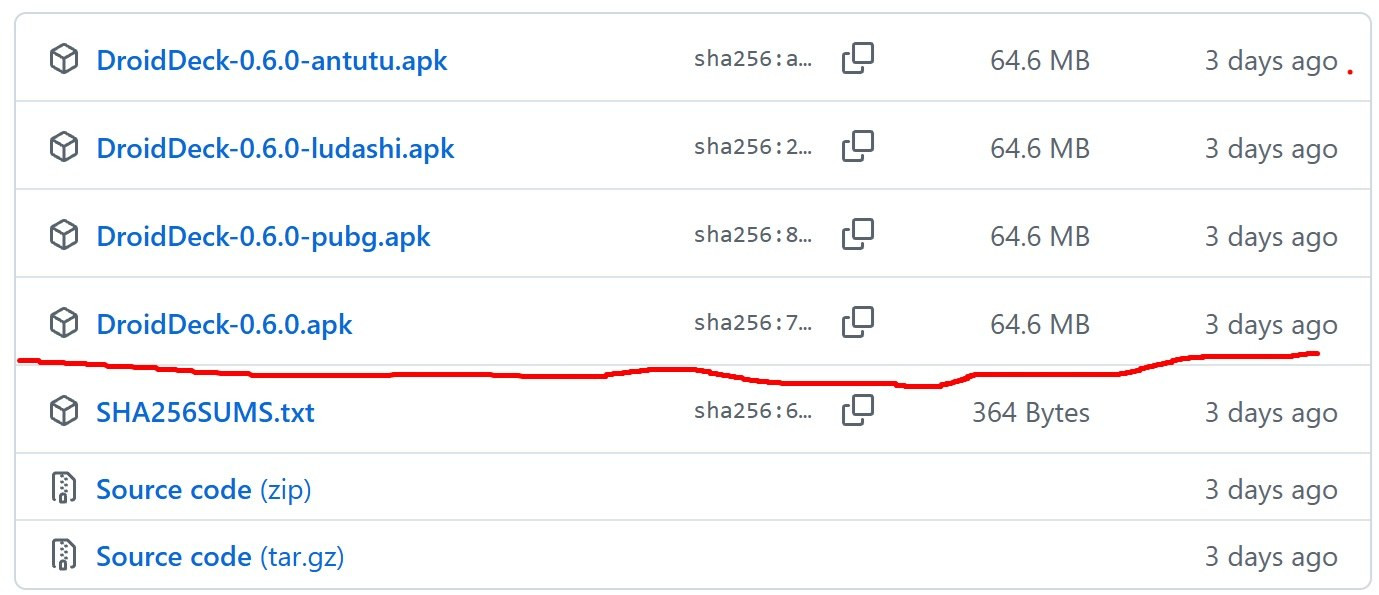
By visiting the official GitHub link (https://github.com/Droid-Deck/DroidDeck/releases), you will find the latest release, DroidDeck-0.6.0.apk, as shown in the photo above. Download the file and proceed with the installation on your smartphone. Up to this point, it is identical to any standard app installation, making it a breeze! 😎
2. Essential Settings for Flawless DroidDeck Performance (Enabling Developer Options)
Hold on—just installing the app isn't the finish line! To ensure DroidDeck runs seamlessly, there is a crucial configuration process you must complete in your smartphone settings. Pay close attention! 🧐
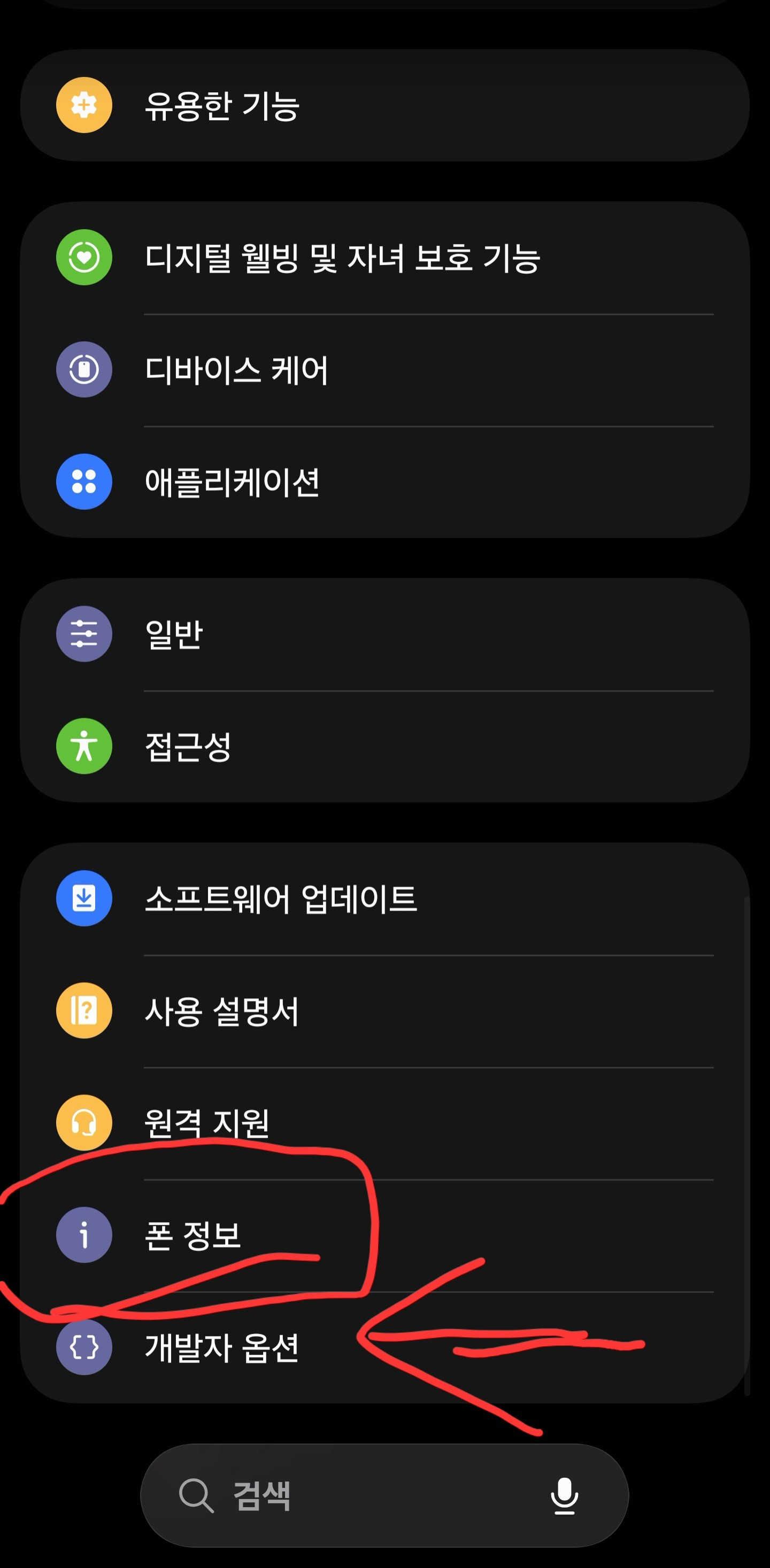
First, open your smartphone's Settings app and scroll all the way down to tap on 'About Phone'. From there, navigate into Software Information.
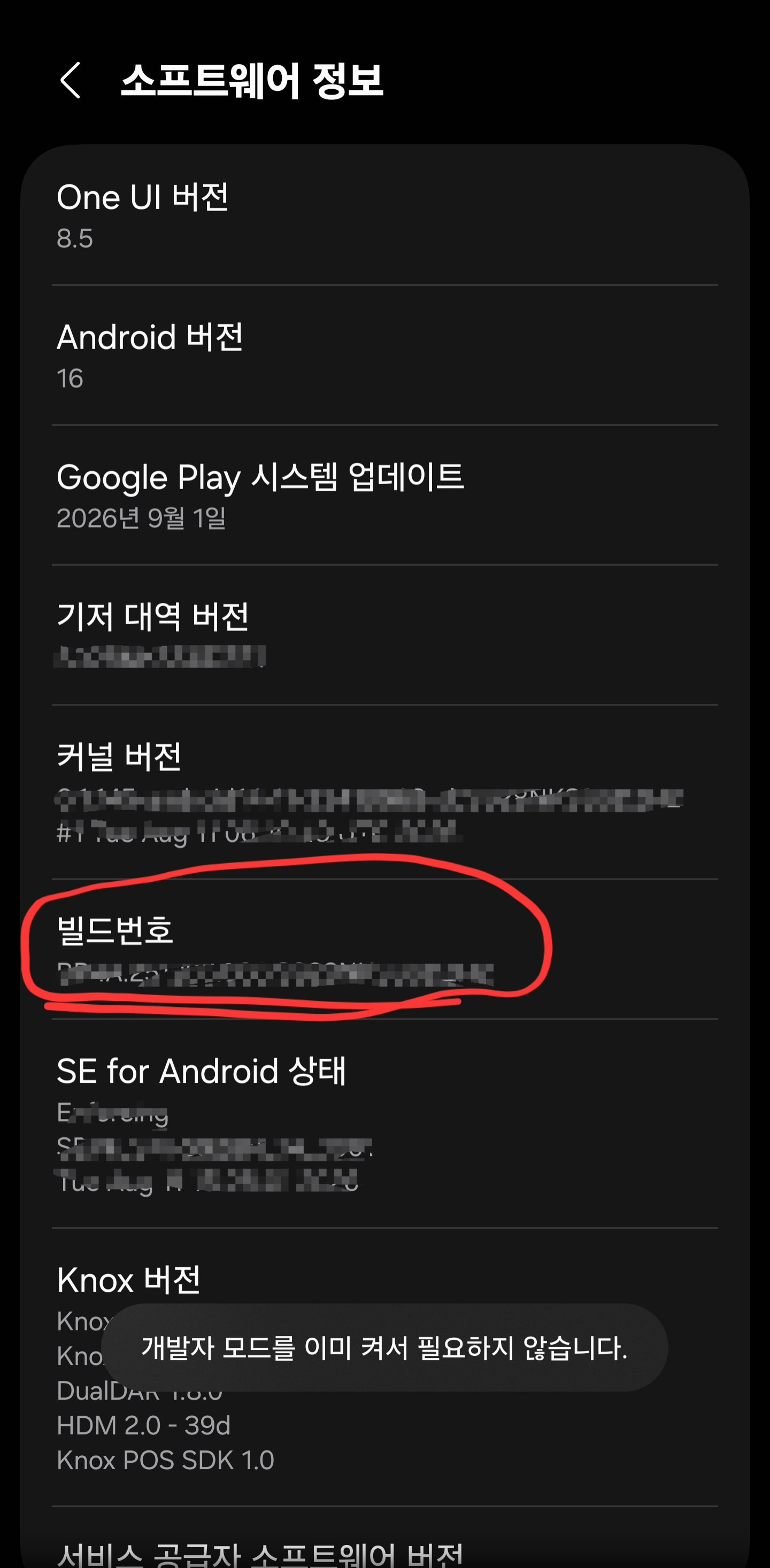
Inside 'Software Information', tap rapidly on the 'Build Number' item over and over again! A magical pop-up message will appear at the bottom of the screen reading, "Developer mode has been turned on." If you head back to the main settings menu now, you will see that the previously hidden 'Developer Options' menu has now been unlocked.
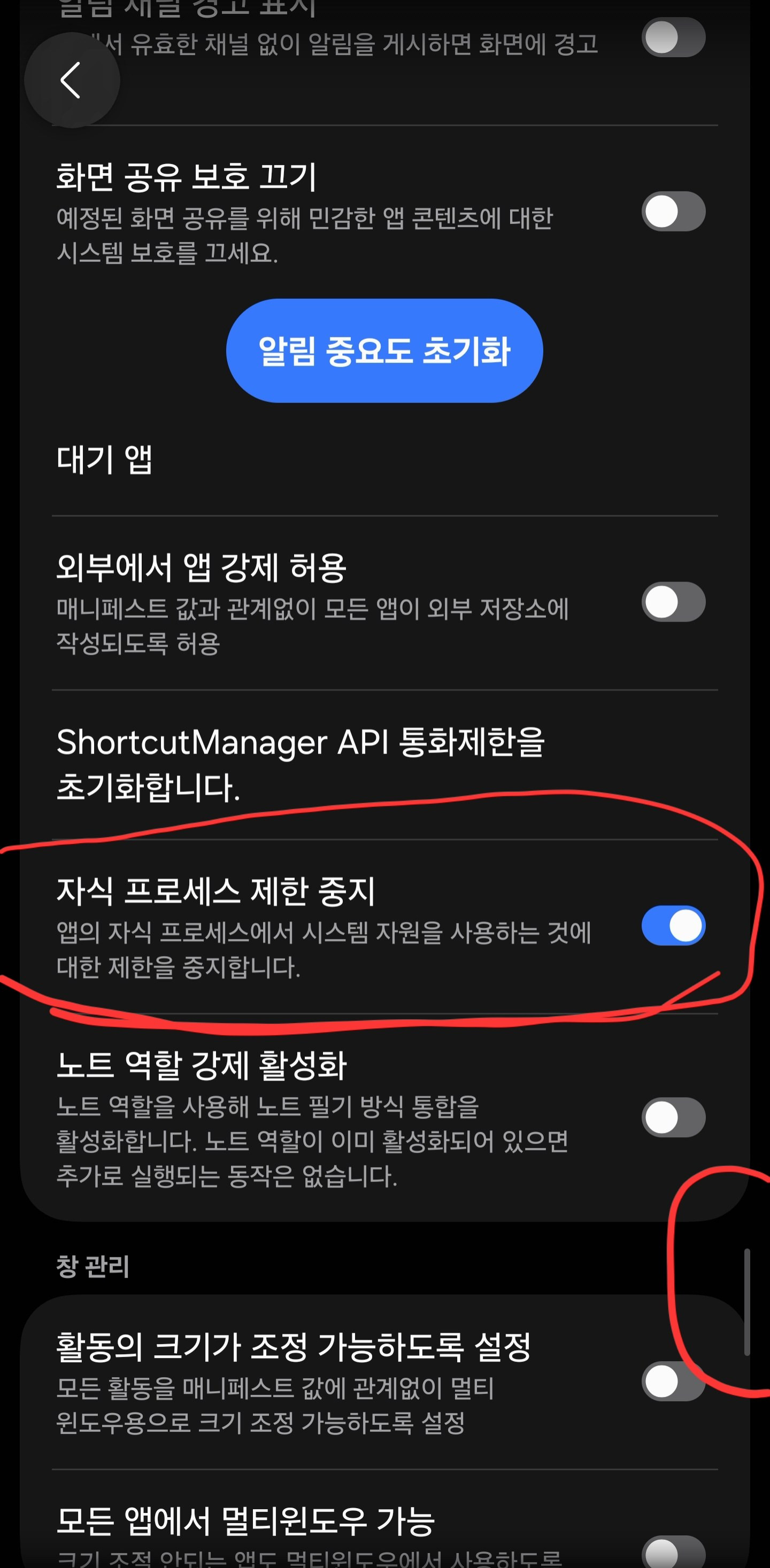
Once inside Developer Options, scroll down almost to the very bottom! Look for the toggle option labeled 'Stop child process limits (or disable child process limits)' and enable it, as shown in the photo above. This setting is the ultimate pro tip for ensuring DroidDeck runs buttery smooth. 💡
3. Mounting the Galaxy S24 Ultra (S24U) and Testing the Main UI
With all the configurations out of the way, it is time to assemble the hardware! I mounted the S24U onto a sleek, clean white smartphone gaming pad sitting right on a warm wooden desk.
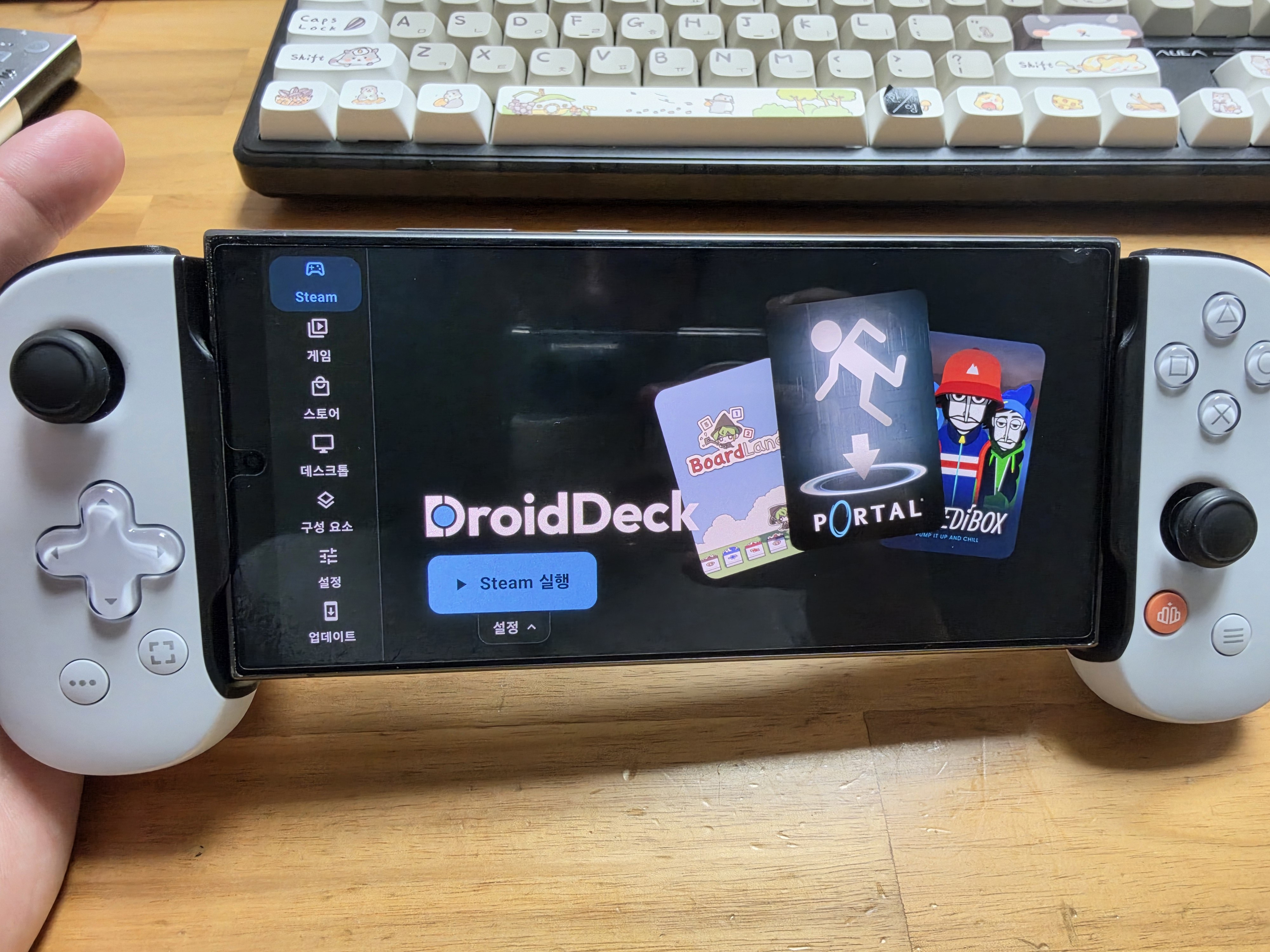
Combining the white-toned gaming pad with the S24U created an incredible visual setup that gives the Steam Deck a run for its money. Seeing the DroidDeck main UI running sharply on the screen was deeply satisfying! 🔥
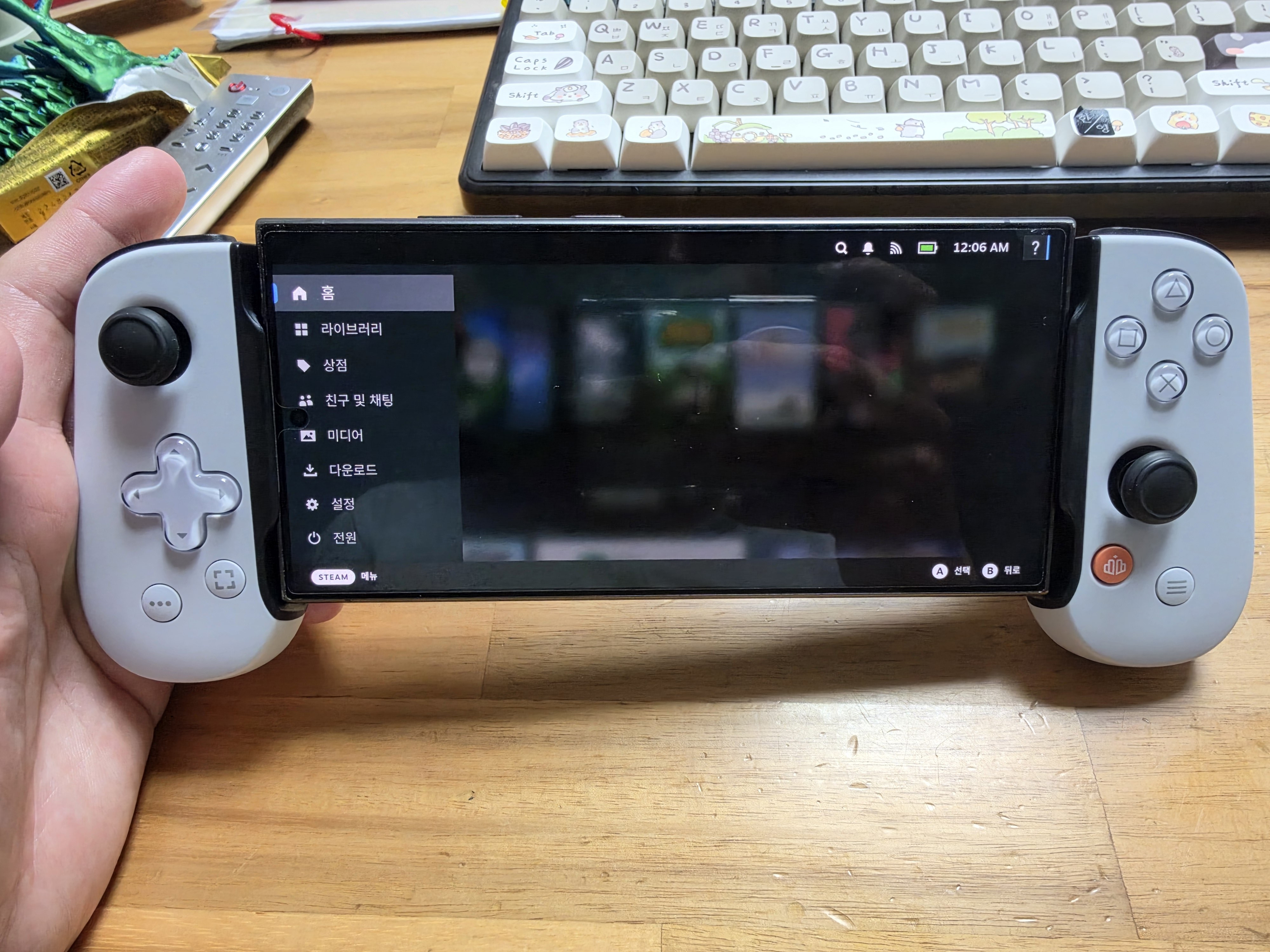
Holding it in my hands for testing, the grip felt fantastic, and the intuitive interface truly brought out that authentic retro gaming vibe. Placed alongside a keyboard featuring charming keycaps, it completes the ultimate desk setup!
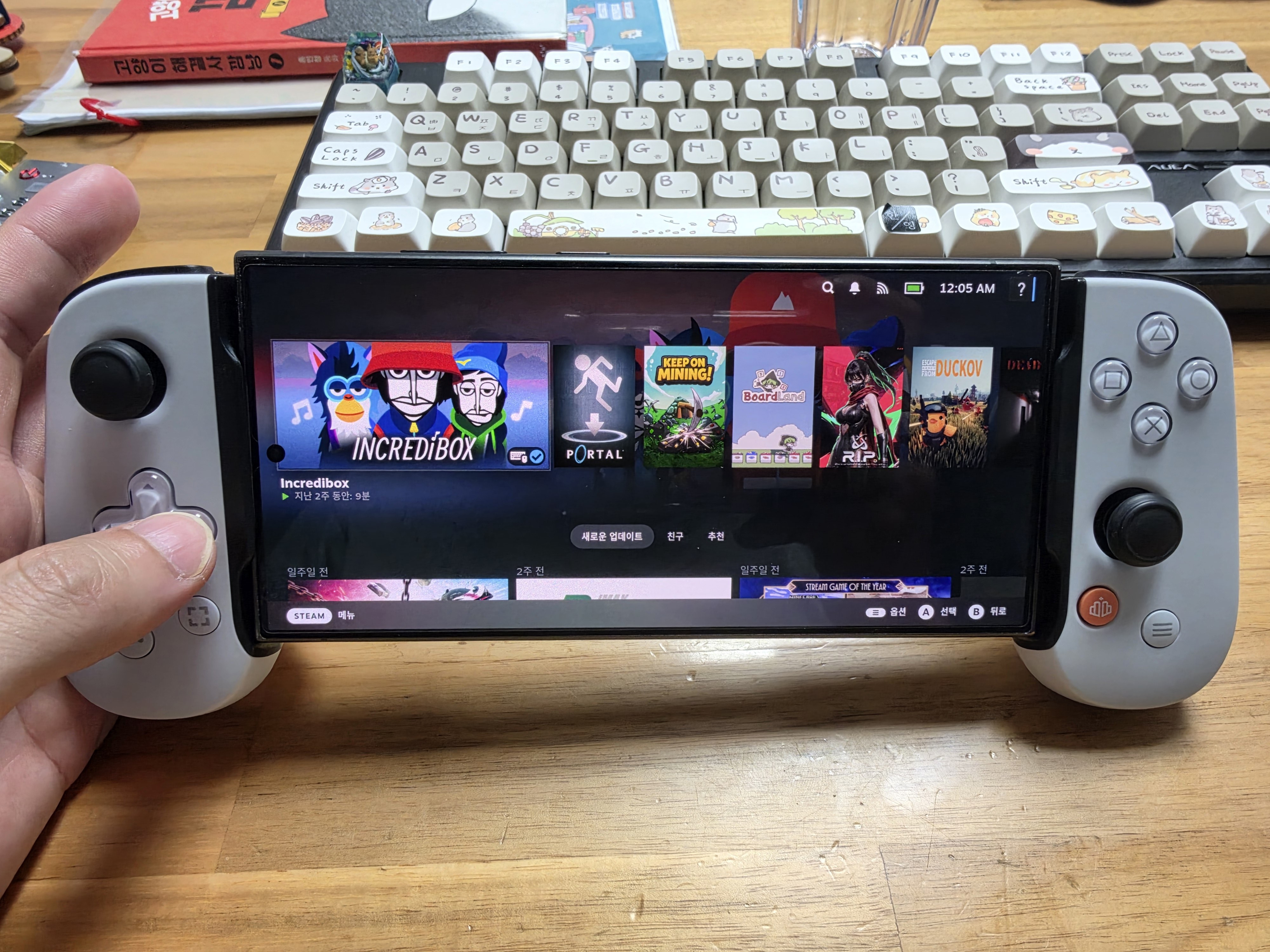
4. Real-World Game Performance Review (Hits vs. Struggles)
Now for the part you've all been waiting for: the actual gameplay review! I downloaded a few games onto the S24U and put them to the test, and the results were fascinating. 🎮
▲ Mounting the smartphone into DroidDeck to kick off gameplay
First, I launched the charming, rhythmic 'Incredibox' and the masterclass puzzle game 'PORTAL'.
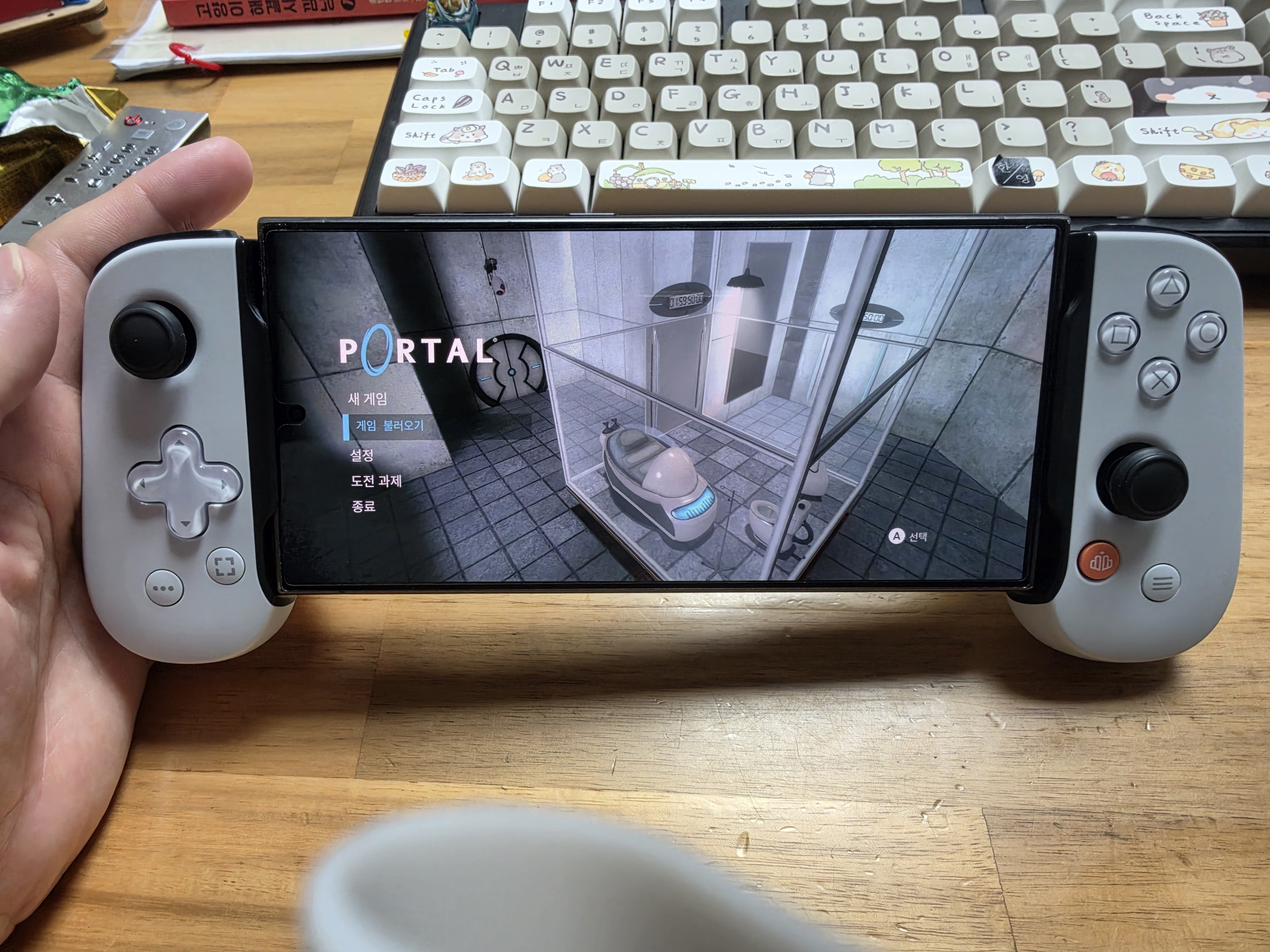
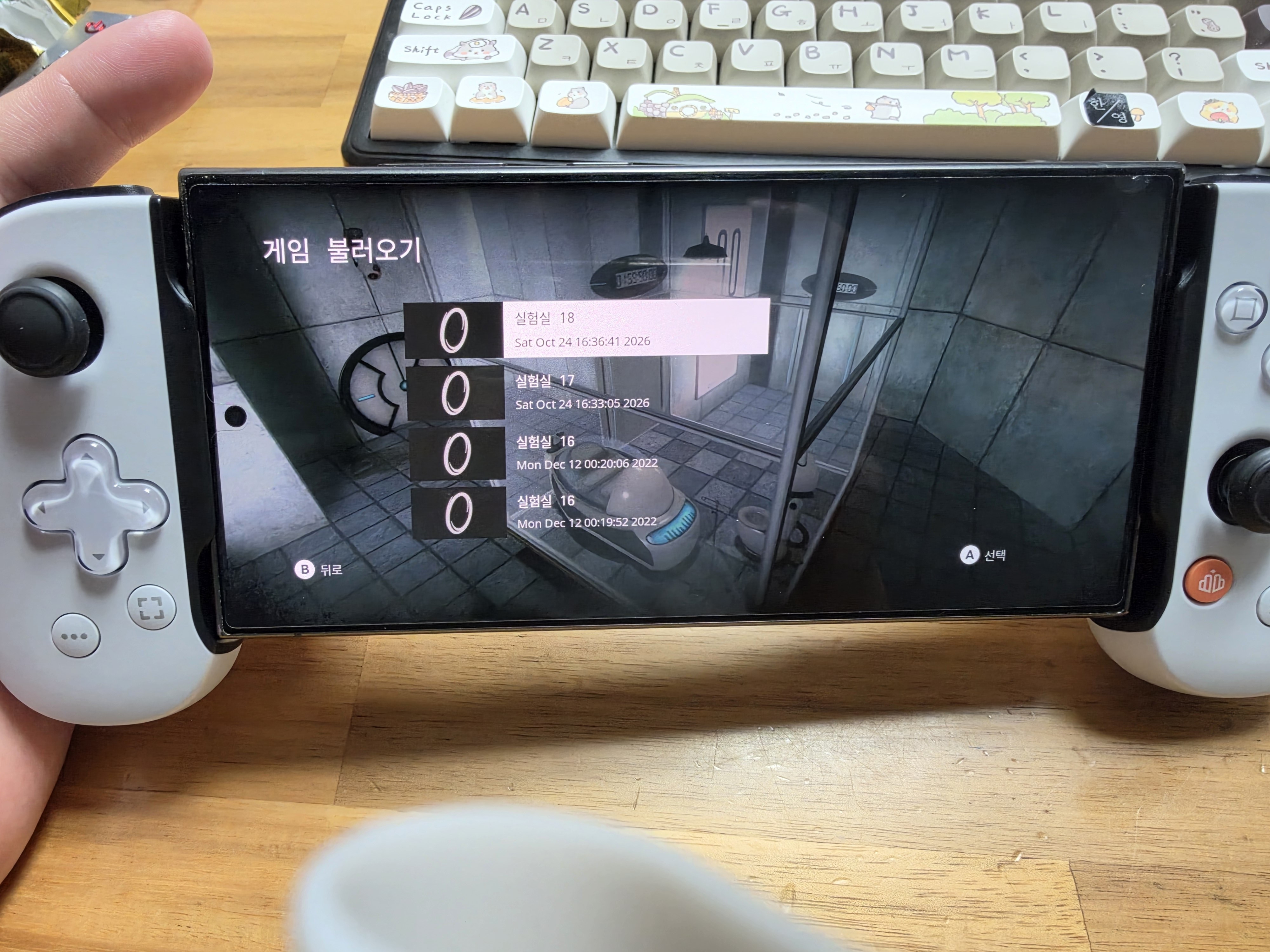
Perhaps because Portal is an older 3D title, it ran exceptionally smooth and fluid within the DroidDeck environment! The controller feedback was superb, driving the immersion through the roof. 🤩
However, not every game was an absolute home run.
As noted in my log, heavier modern titles like 'Keep on Mining' or 'Duckotive' pushed the smartphone a bit too hard, resulting in noticeable heating and frame drops.
💡 💡 Verdict Summary:
Rather than heavy, high-spec 3D games, it is a phenomenal, cost-effective choice for enjoying light indie games and casual titles right on your phone!
📌 DroidDeck Setup Information Summary Table
| Category | Details |
|---|---|
| Product / Project Name | DroidDeck (v0.6.0) |
| Test Device | Galaxy S24 Ultra (S24U) + White Game Pad |
| Essential Setup | GitHub APK Installation + Repeated Build Number Taps (Developer Options) + Disable Child Process Limits |
| Gaming Performance Satisfaction | ⭐️⭐️⭐️⭐️ (Smooth execution of casual/indie games like Portal, Incredibox) |
| Recommended For | Tech enthusiasts and gamers looking to repurpose an idle smartphone into a personal portable console |
| User Pro Tip | Enabling 'Stop child process limits' in Developer Options is mandatory, not optional! |
That wraps up Part 2 of our DroidDeck setup and review. If you've been curious about mobile gaming setups, I strongly encourage you to give it a try this weekend!
We'll be back with more insightful and entertaining tech news soon. Take care! 👋
#DroidDeck #SmartphoneGamePad #GalaxyS24Ultra #S24UGamePad #PortalGame #MobileConsole #TechBlog


Comments
Post a Comment